Contact email addresses
Podravka Inc. conducts its procurement processes through the SAP Ariba digital platform
Key benefits of using SAP Ariba include:
-
Efficiency
-
Transparency
-
Clear visibility of projects and transactions
-
Flexibility
-
Optimized collaboration with existing and new suppliers
To become a supplier of Podravka Inc., you need to create an account on the SAP Ariba Network.
Standard account
Creating and using a Standard account (sufficient for communication and participation in procurement processes) is free of charge. Suppliers with a Standard account on the SAP Ariba Network do not pay additional fees or licence charges. More information is available at:
Enterprise account
Suppliers may also choose to create an Enterprise account, which provides access to advanced features and is subject to fees. More information is available at:
There are several registration scenarios:
Please request registration by completing the registration request form at: link
The registration process is as follows:
After you submit the initial Registration Request and it is approved by Podravka Inc., you will receive the final registration questionnaire by email. Please create your user account and complete the questionnaire.
You do not need to submit a registration request. Please contact supplier support at: ariba.support@podravka.hr to receive the final registration questionnaire.
Once you receive the final registration questionnaire, please follow the instructions provided to create your user account.
You can access the final registration questionnaire from your Ariba Network user account.
A new registration is not required.
If you did not receive the login link earlier, please contact ariba.support@podravka.hr or your procurement contact person.
Suppliers should create their Ariba user profile using the email address to which the registration request was originally sent. It is possible to create a profile using a different email address; however, the connection to Podravka Inc. can only be established after Podravka Inc. submits a connection request.
A detailed registration manual (PDF) will be available on this page.
After successful registration, suppliers can participate in tenders and other procurement processes to which they are invited.
For additional information or support, please contact us at: ariba.support@podravka.hr
Frequently asked questions
A DUNS number is a unique nine-digit numeric identifier issued by Dun & Bradstreet, Inc. DUNS numbers are used to maintain accurate and up-to-date data on millions of global companies. Lenders and potential business partners can rely on the business credit files linked to your DUNS number to predict how reliable or financially stable your company is.
You do not need a DUNS number to use the SAP Ariba system, and entering a DUNS number in your company profile is completely optional.
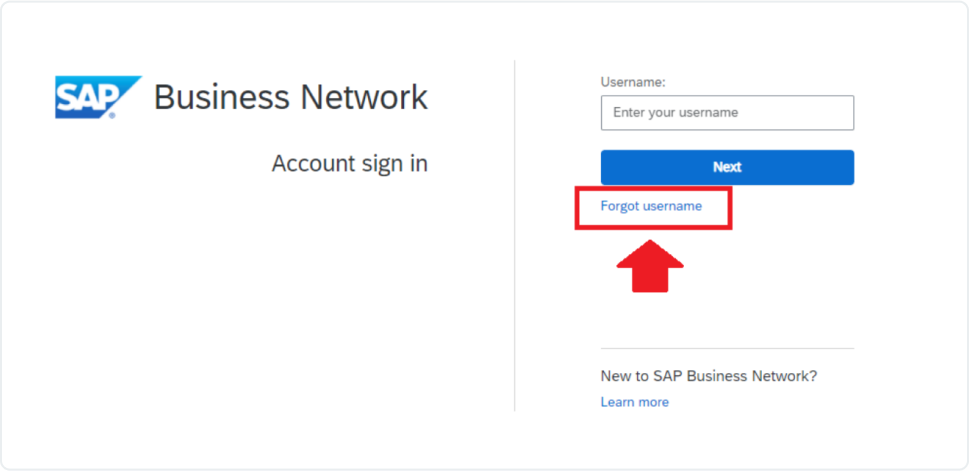
If you have forgotten your username or password, in the first step you must select the option shown in the image and follow the instructions you will receive by email.
-
In the upper right corner of the application, click [user initials] > My account.
-
Enter your personal information and settings for your preferred language, time zone, and currency.
Note: By default, user organizations can see the name, phone number, and email address of your account administrator. If you are the account administrator, you can click Hide my personal information in the Contact Information Settings section to hide your personal information from organizations with which you do not have a business relationship within the SAP Business Network.
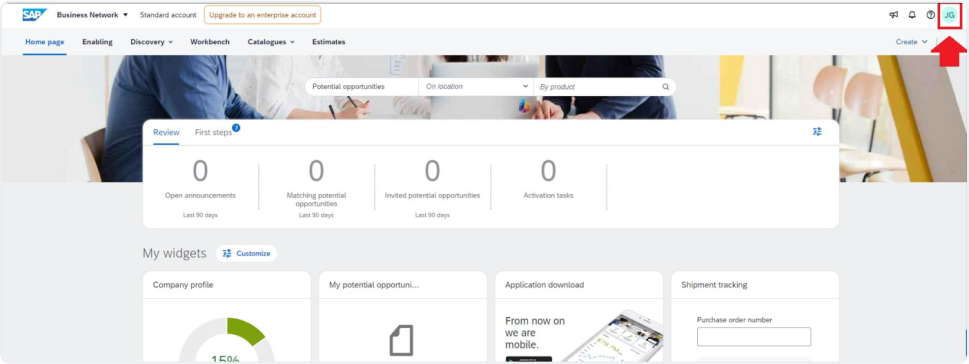
This option opens all fields through which you can manage the company profile, your information, interface data, etc.
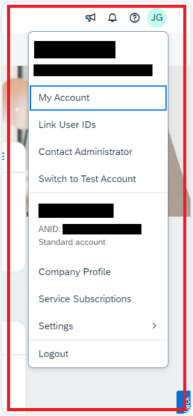
Contact the administrator for these types of requests:
-
You cannot access your account and need to request a password reset.
-
You need to access another user’s account.
-
You need additional permissions for your user account.
-
You need help updating user information.
-
You need access to your company’s test account.
-
You are getting an error that refers you to the administrator.
-
You need to become the administrator. The current administrator is still employed by your company, but is no longer the person who should manage the company account.
-
You need to request a user account for another employee of your company.
Additional information: If the administrator is no longer employed by your company and you do not have access to their account, contact SAP Ariba Customer Support to transfer the account administrator role.
- Click the help icon (?) in the upper right corner of the application.
- Click Support at the top of the help menu.
- Click the Contact us tab.
- Enter a short description of your question or problem in the Start here to find answers field.
- Click the search icon.
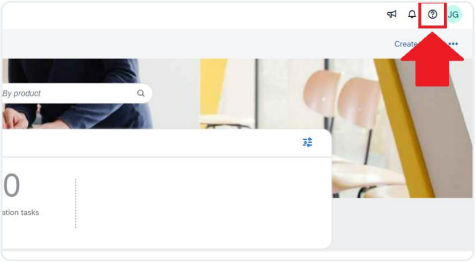
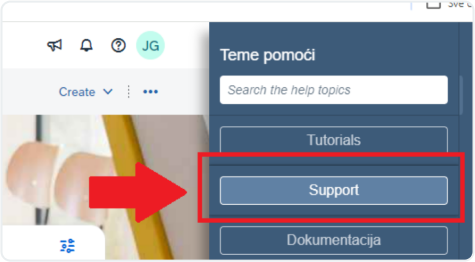
After searching, click on a topic based on our recommendations or on the button related to your question/problem under the Choose from the offered options section to learn more and get help.
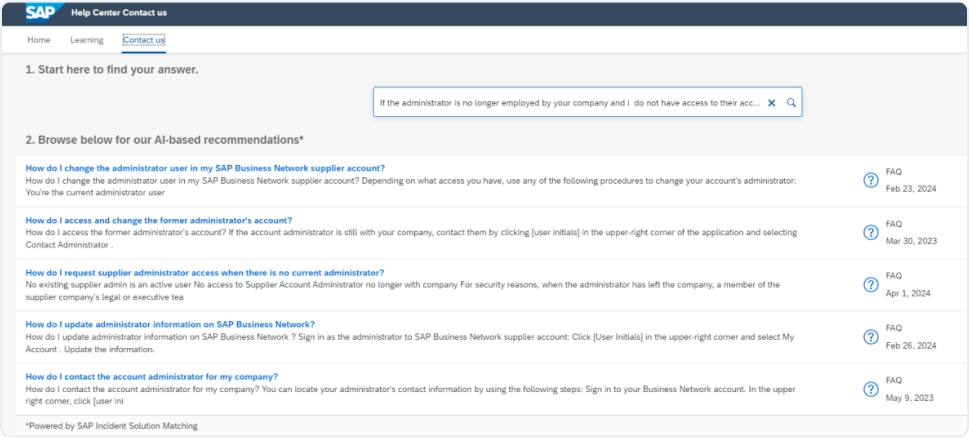
If you still need help after reviewing the provided steps:
- In the options offered for What do you need help with? click Something else at the bottom.
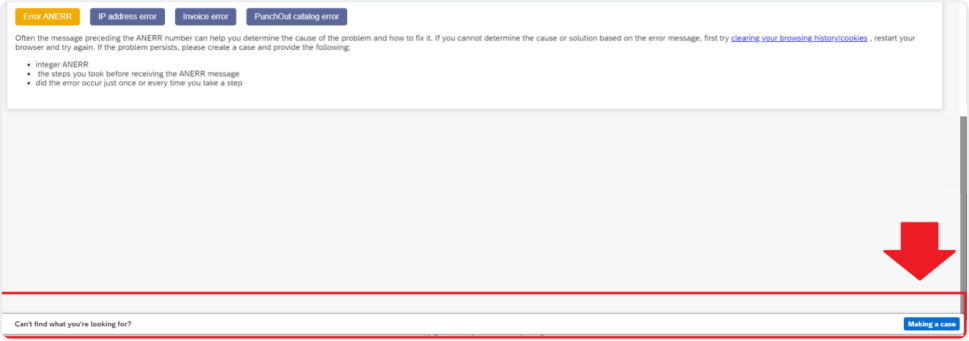
- At the bottom of the screen, the bar Can’t find what you’re looking for? will appear. Click Create case on the right side.
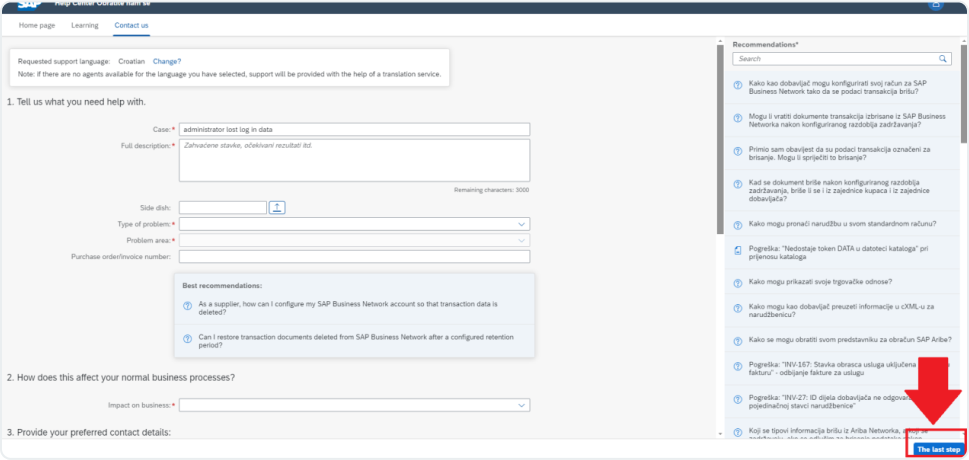
- Fill out the form with as many details as possible.
- Click Final step in the lower right corner.
- Choose the contact method and click Submit.
If you do not see the Can’t find what you’re looking for? Contact us button, the question/problem you are searching for may require you to click on other options so that we can support your request.
Supplier administrators can create new users
- Log in to your account
- Click Admin configuration (gear icon) > User > New
If you do not see the option to create a user, contact the administrator user from your company for assistance.
- Enter all required information for the new user
- Click Add
- The user will receive two emails from SAP Fieldglass, one with a registration link and one with a registration code. Click Resend invitation if you need to resend both emails to the new user.
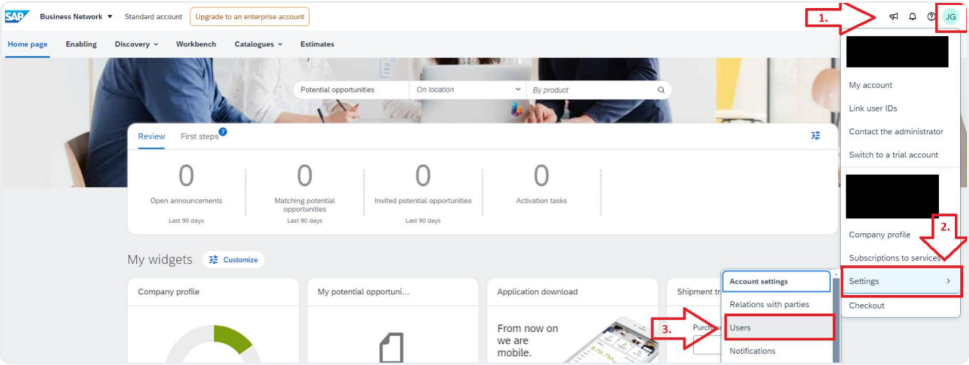
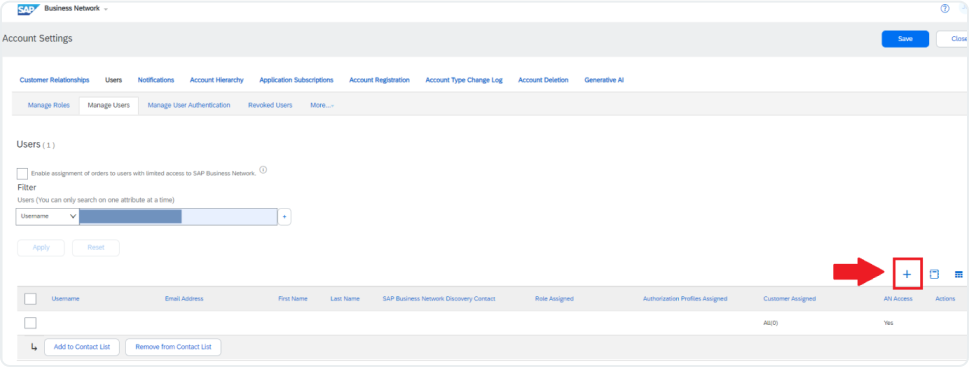
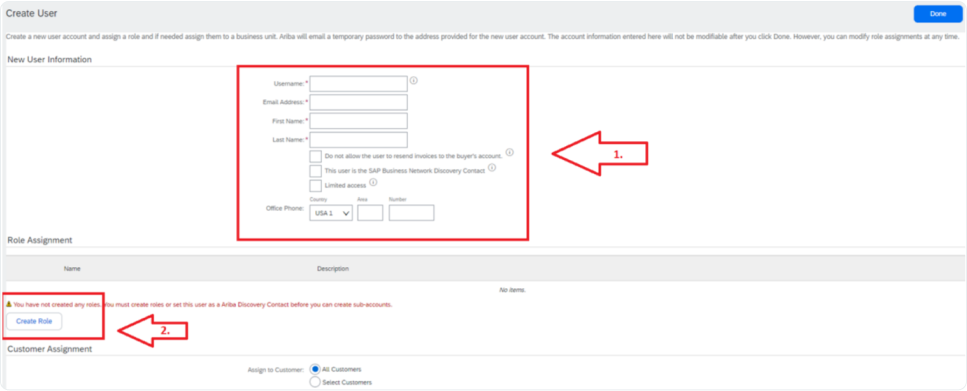
- Fill in the information (fields marked with * are mandatory)
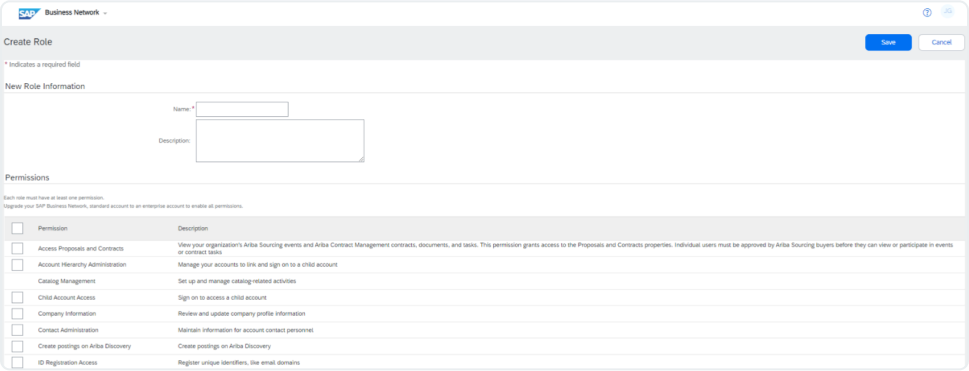
- Create a role (each user must have certain roles – you can select all roles or limit the user to specific roles – this depends on your business strategy)
- When you name the role and select authorizations for the role, choose the Save option.
Note: The role you created will be available to you during future assignments, and you can later edit/delete it.
After the administrator adds a person, that person will receive 2 system emails:
- The first with general information
- The second with a temporary password.
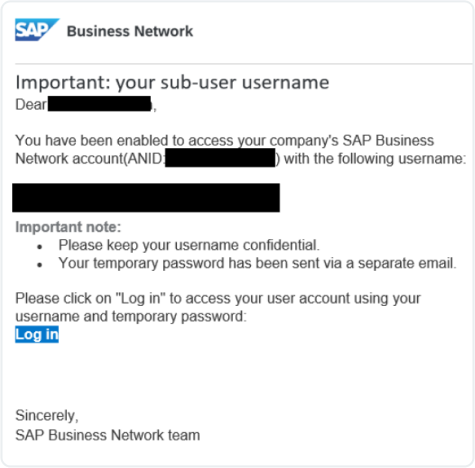
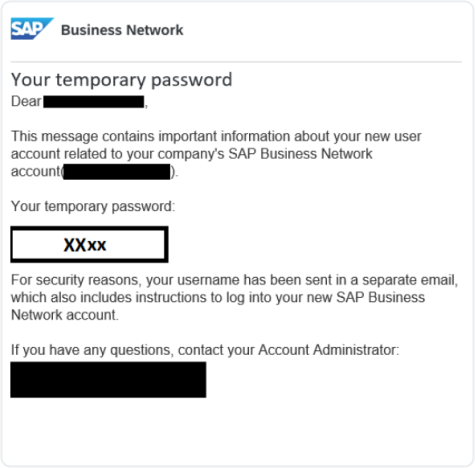
The new contact person can follow the links and successfully log in to the company profile.
Two possible options:
- Register or log in using the link from the email invitation sent by the buyer (Podravka)
- Or go to the Ariba proposals and questionnaires page
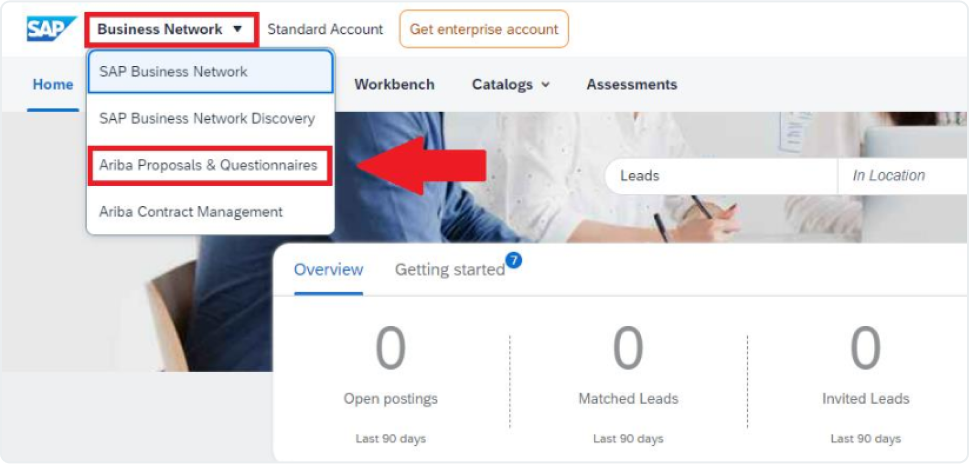
To access the Ariba proposals and questionnaires page, you need to log in to your account and click the application drop-down menu in the upper left corner of the application and select Ariba proposals and questionnaires.